✅Note: Install an authentication app beforehand. This example uses Google Authenticator. |
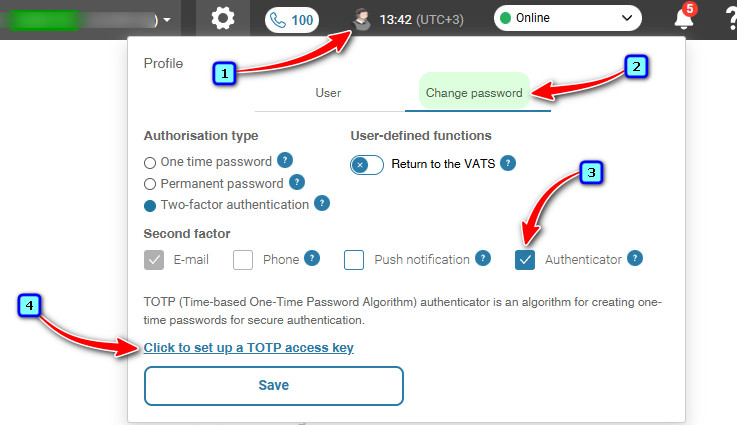
In the top menu on any Account page:
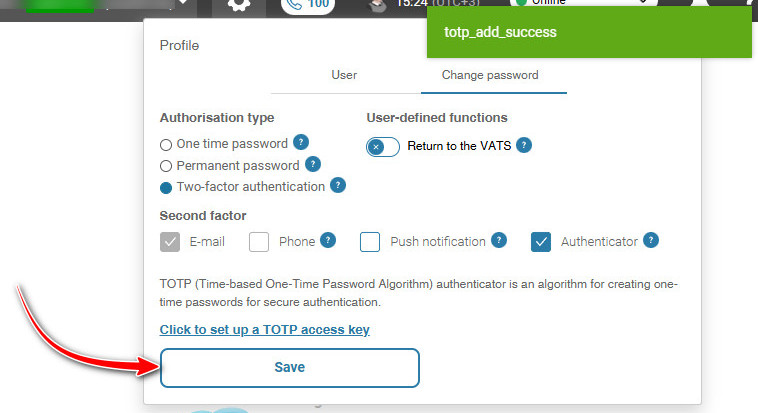
Click on the profile icon.
Select the 'Change password' tab.
Check the Second factor checkbox — 'Authenticator'.
Then click on 'Click to set up a TOTP access key'.
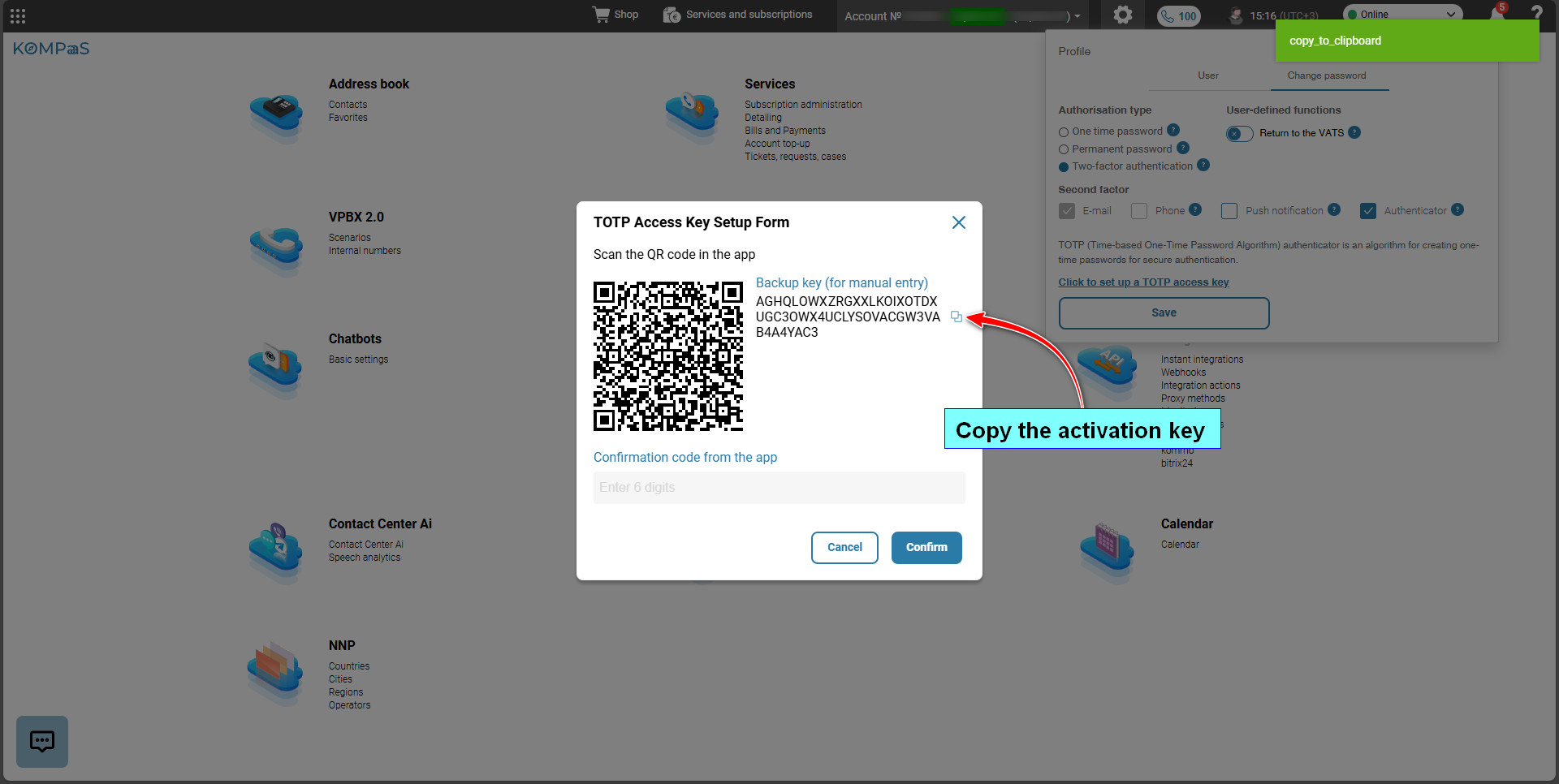
Copy the activation key.
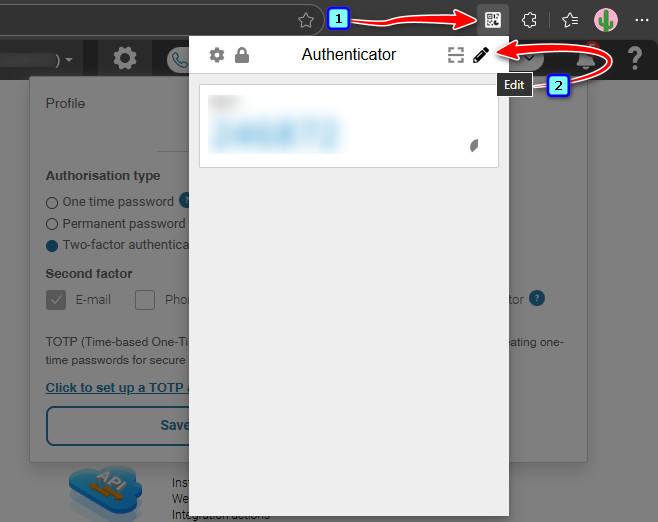
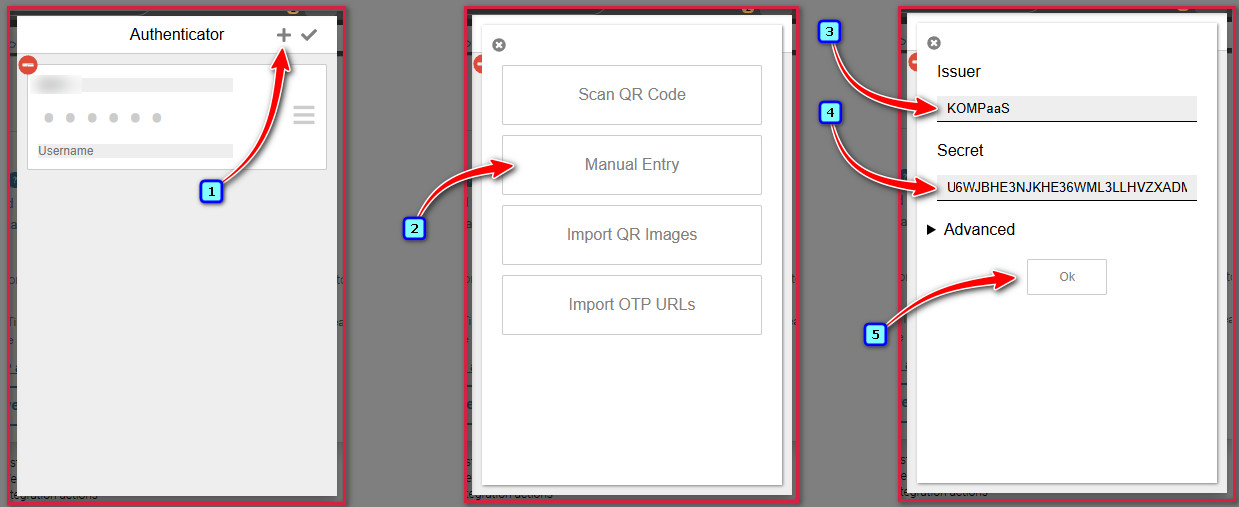
In the authentication app, add the copied activation key using the 'Edit' button.
Click 'Ok'.
Then click 'Save'.
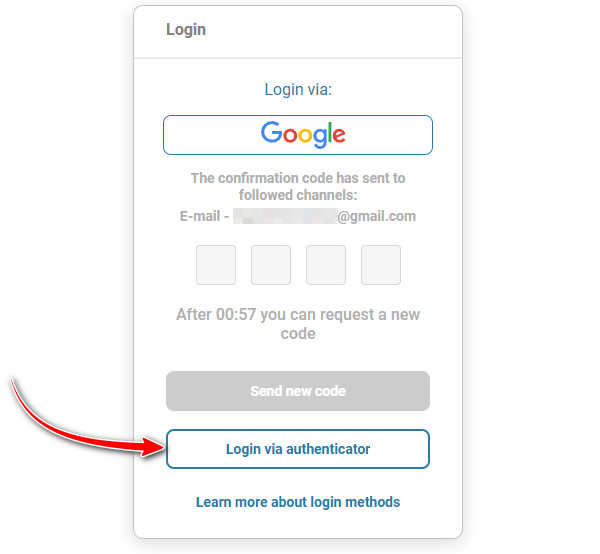
Now when logging into your Personal Account, click the 'Login via authenticator' button.
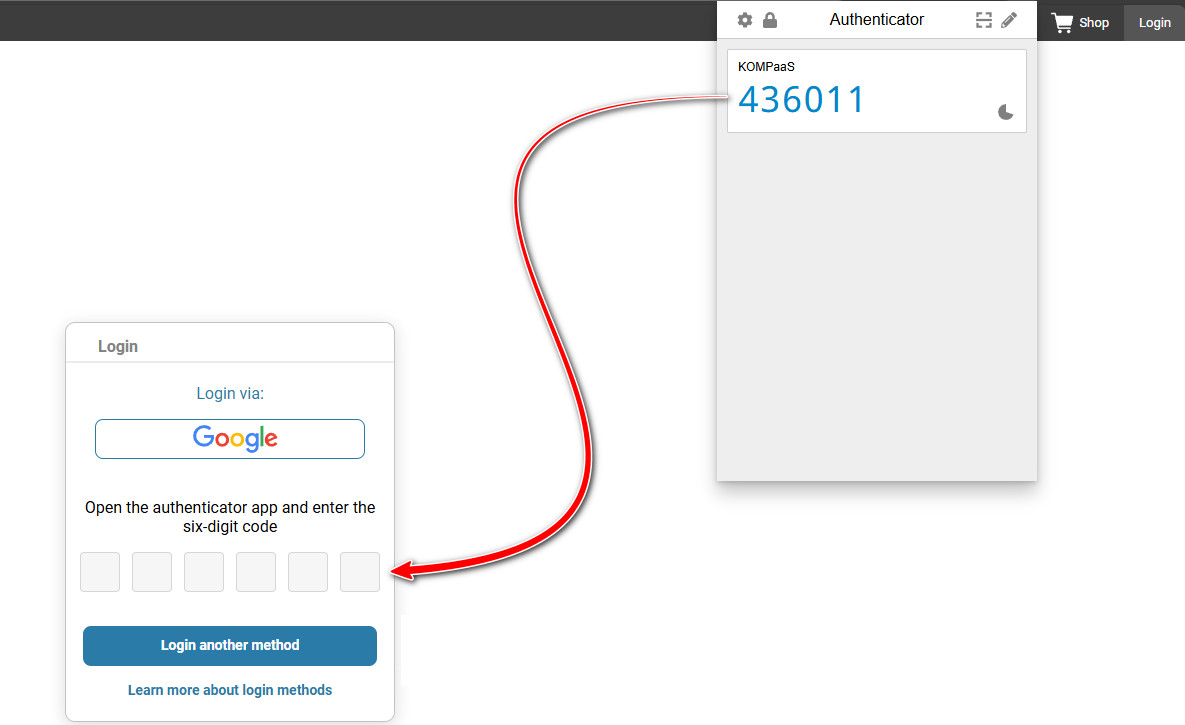
And enter the code from the app.
See also:
Was this article helpful?
That’s Great!
Thank you for your feedback
Sorry! We couldn't be helpful
Thank you for your feedback
Feedback sent
We appreciate your effort and will try to fix the article