To start configuring the integration with Slack on KOMPaaS, you need to have profiles in:
Step 1.
Go to the link to create a new application.
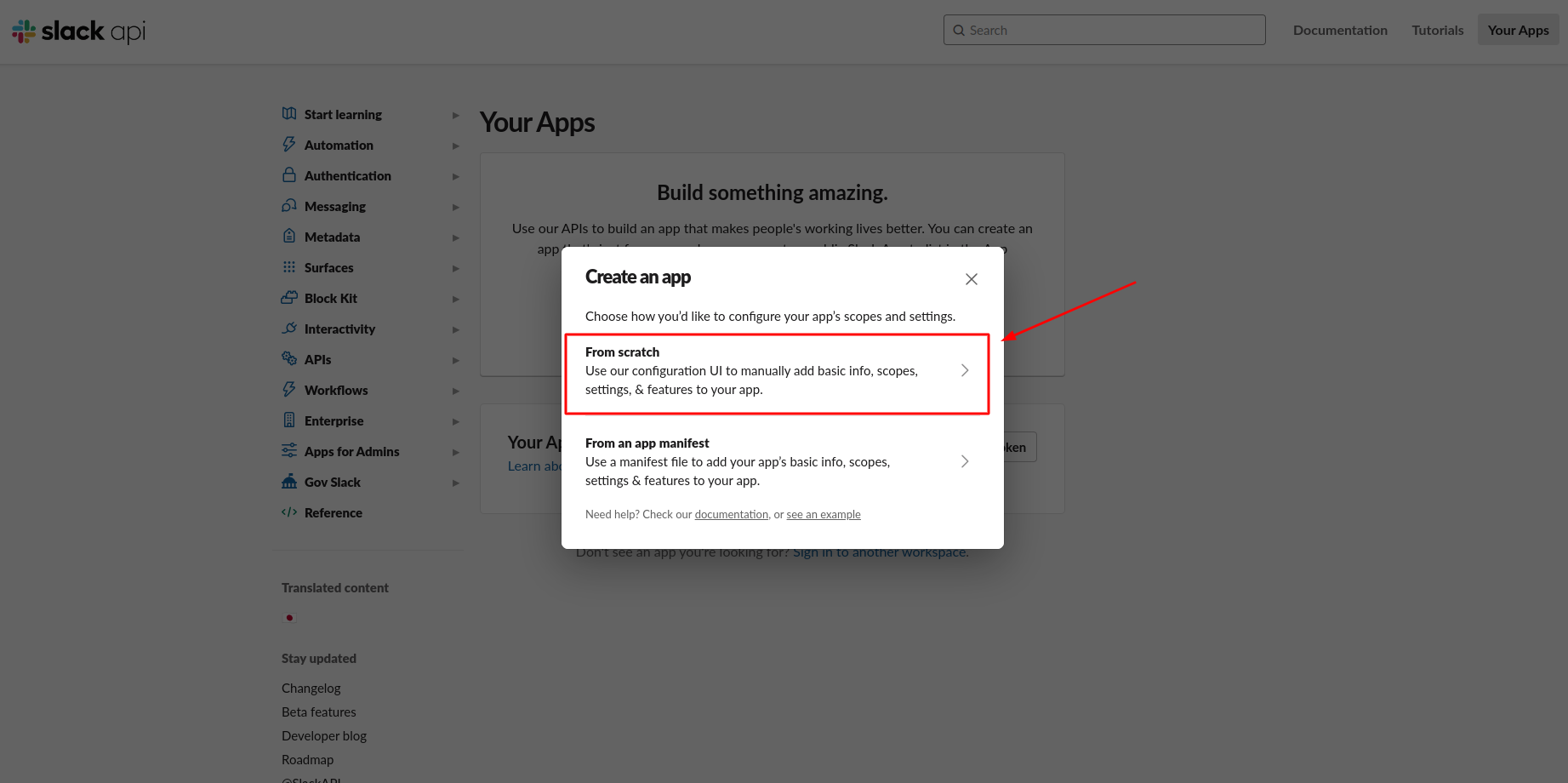
Choose the creation method. In our case, the creation method is 'From scratch'.
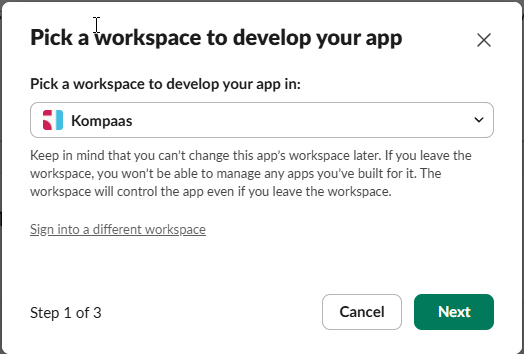
Then select Kompaas and click Next.
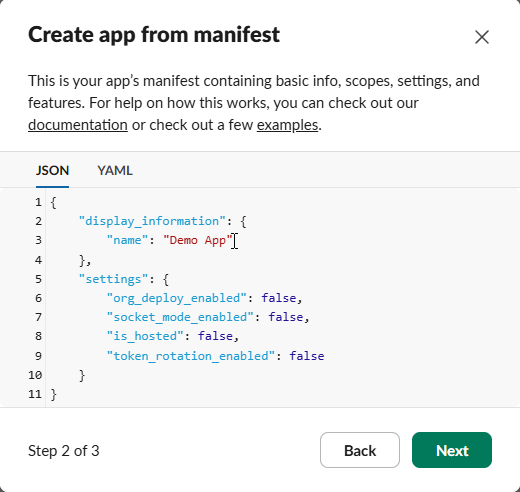
Click Next again.
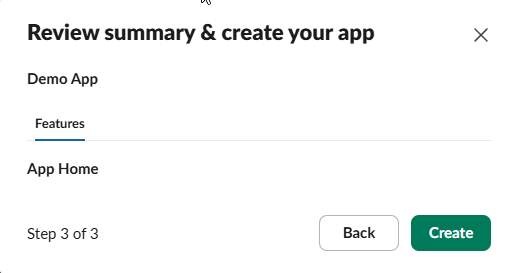
Finish by clicking Create.
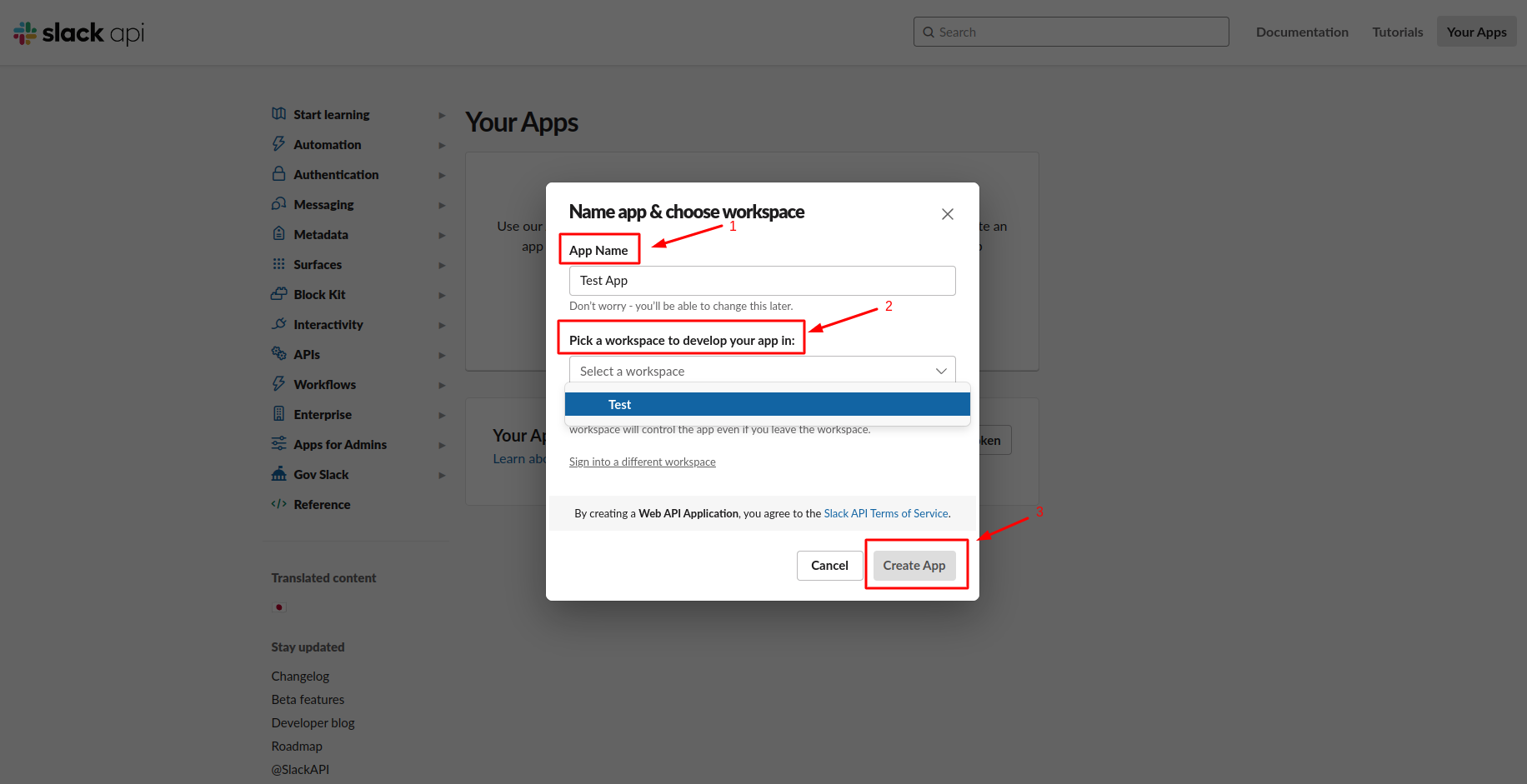
Step 2.
1 - Specify the App Name;
2 - Pick a workspace to develop your app in (Workspace - the workspace created during the profile registration);
3 - Click Create App.
Step 3.
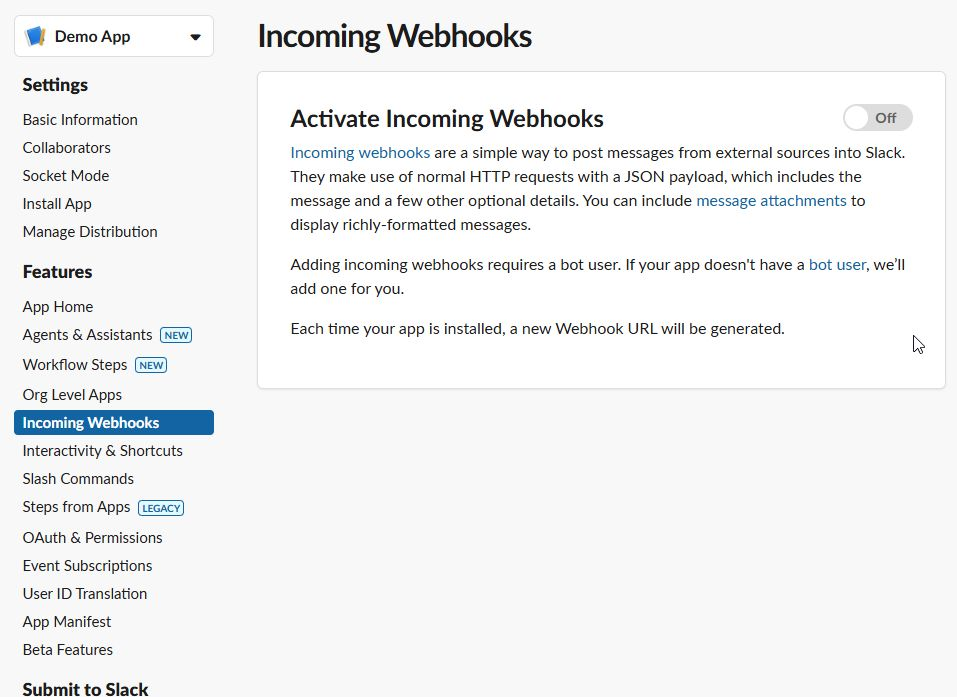
Select the section "Incoming Webhooks".
Step 4.
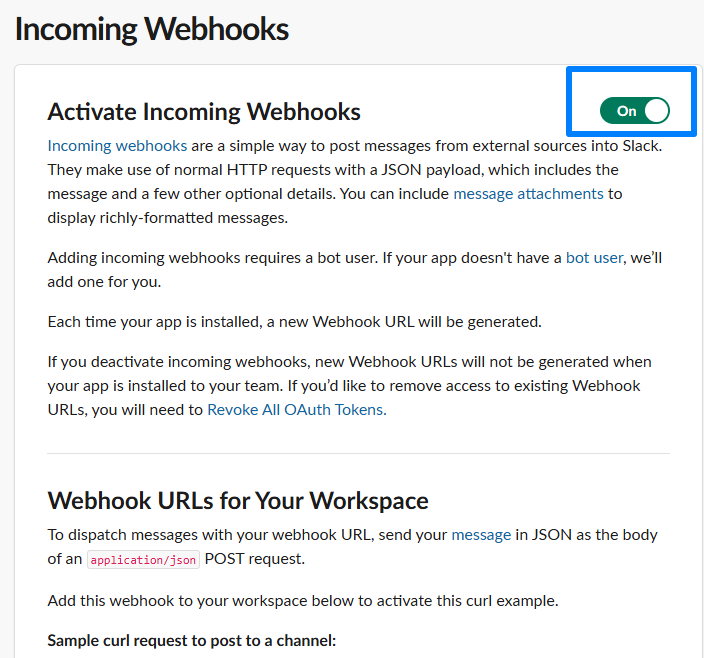
Activate the "Incoming Webhook".
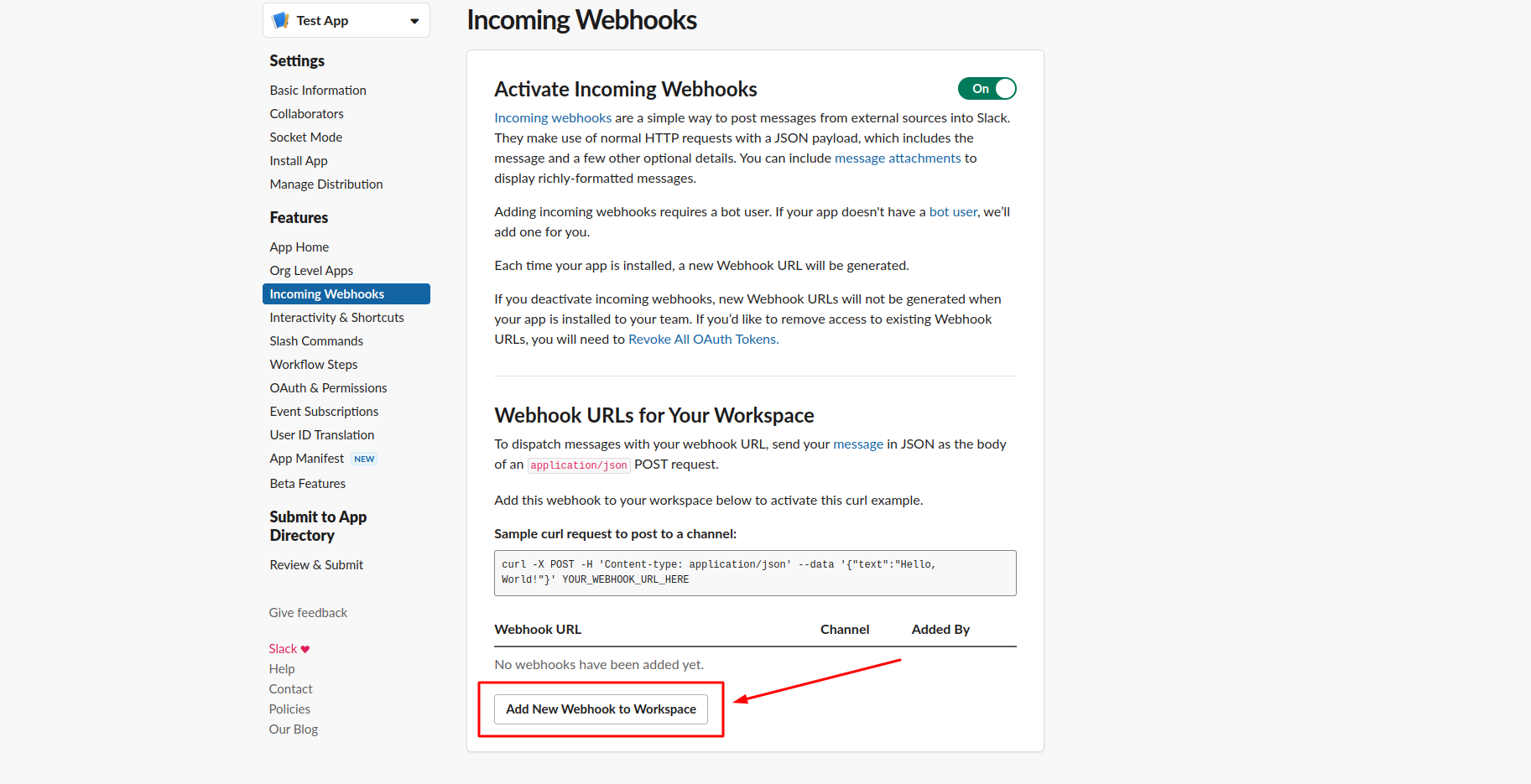
Add a new webhook to your workspace by clicking the Add New Webhook to Workspace button.
Step 5.
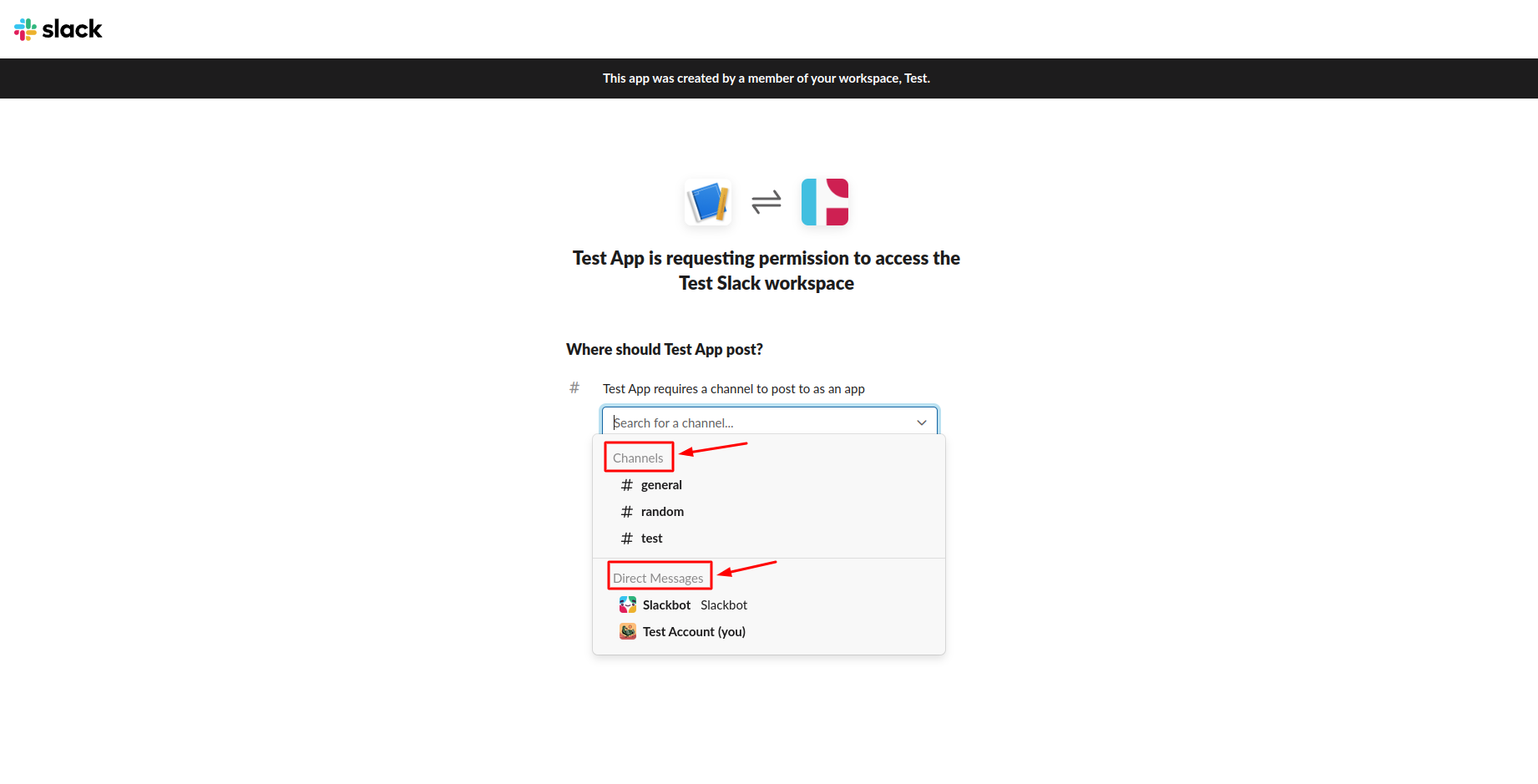
Choose the location for our application from the dropdown list. Either in "Channels" or in "Direct Messages".
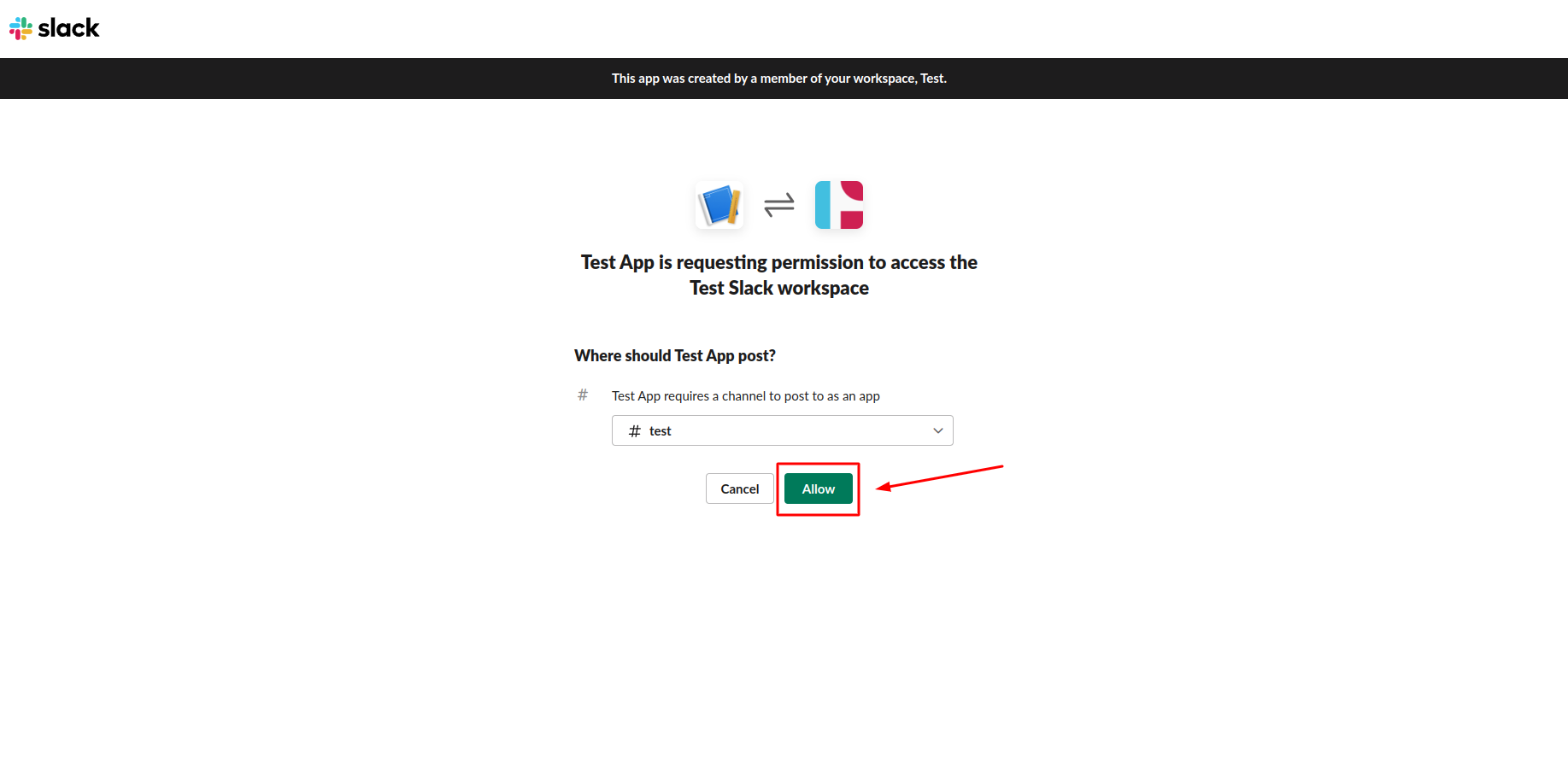
Click the 'Alow’ button.
Step 6.
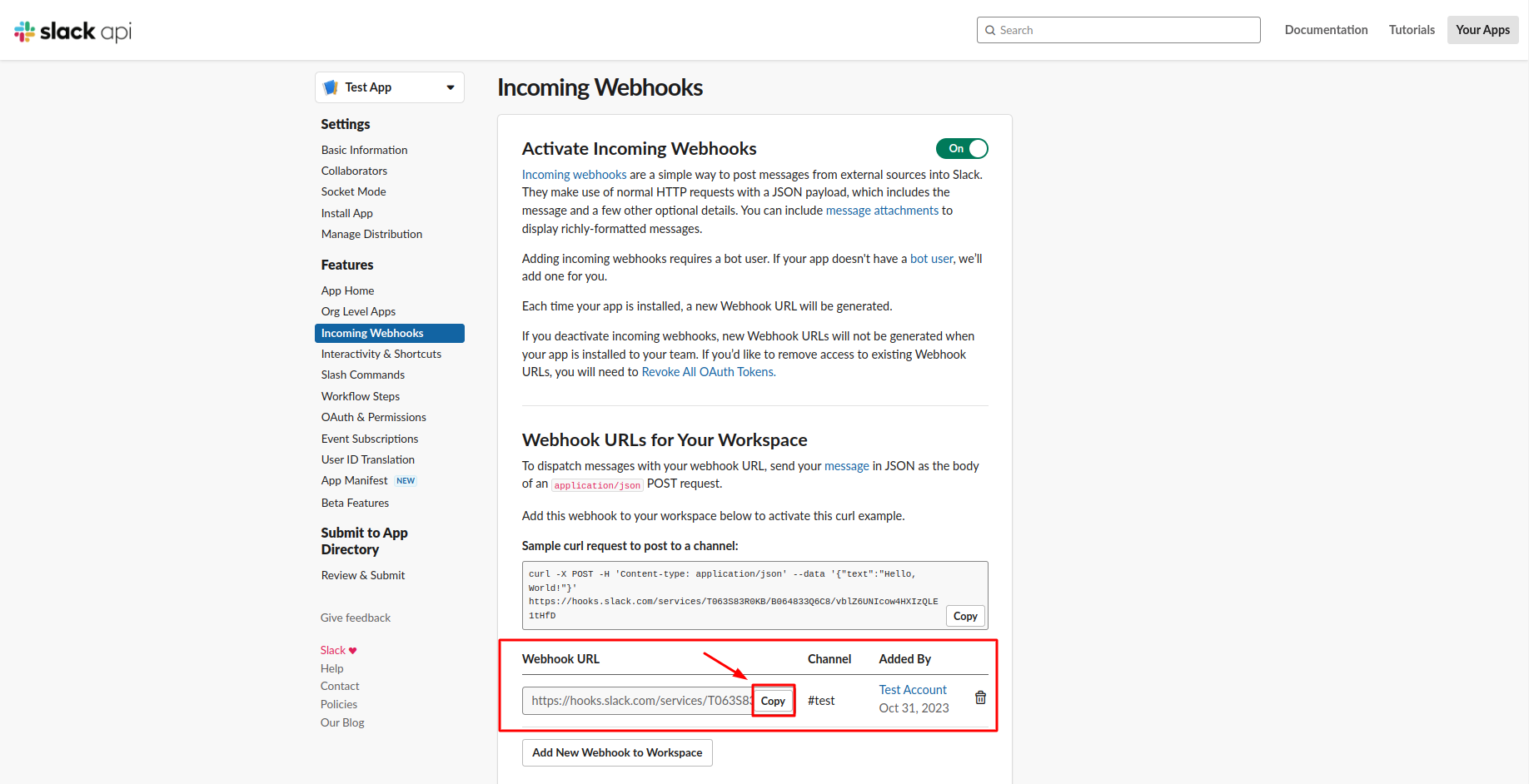
You will be directed to the page with the created webhook and its details.
Click the "Copy" button.
The webhook link is now saved to your clipboard.
Step 7.
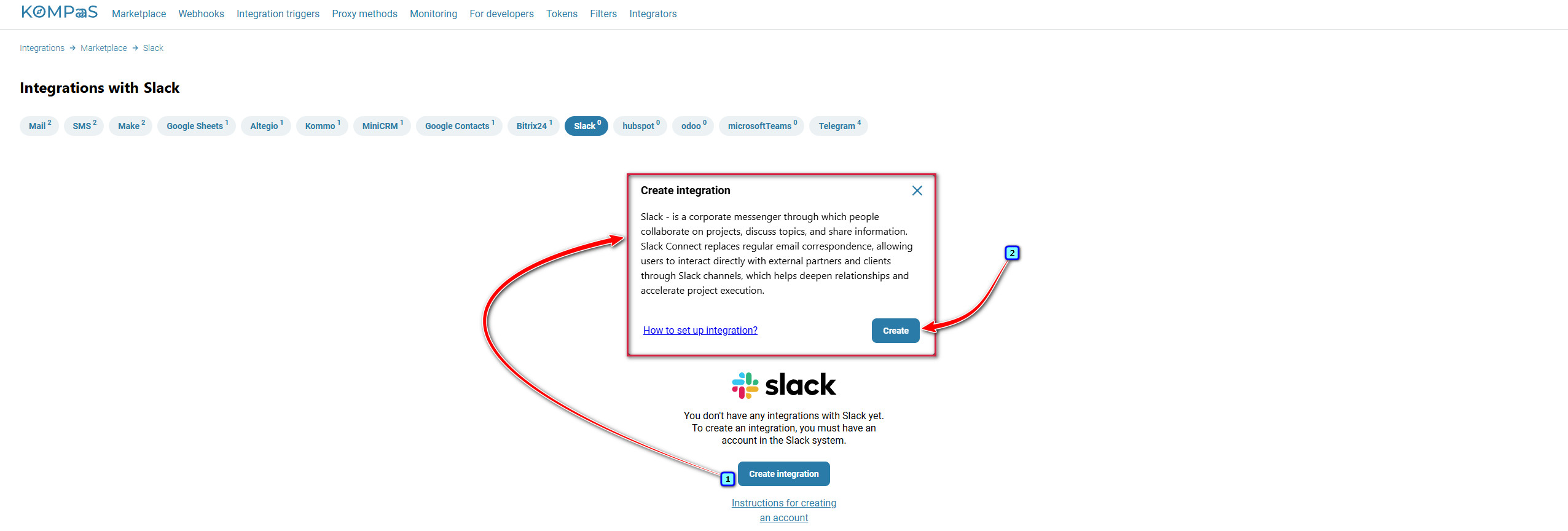
Go to the Integrations section of the Marketplace tab and create an integration with Slack:
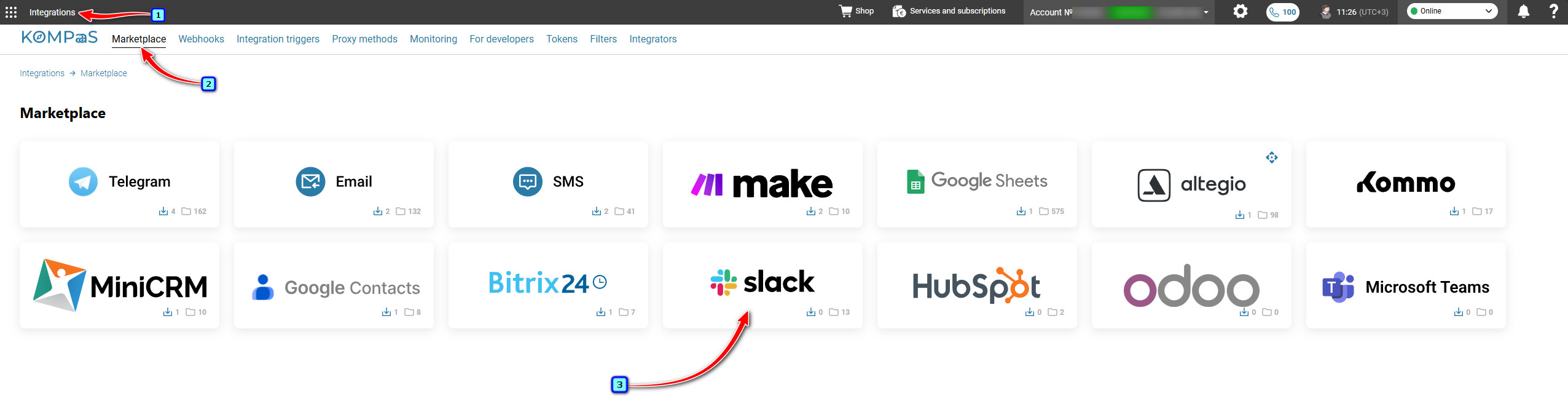
Click Create integration → Create.
Step 8.
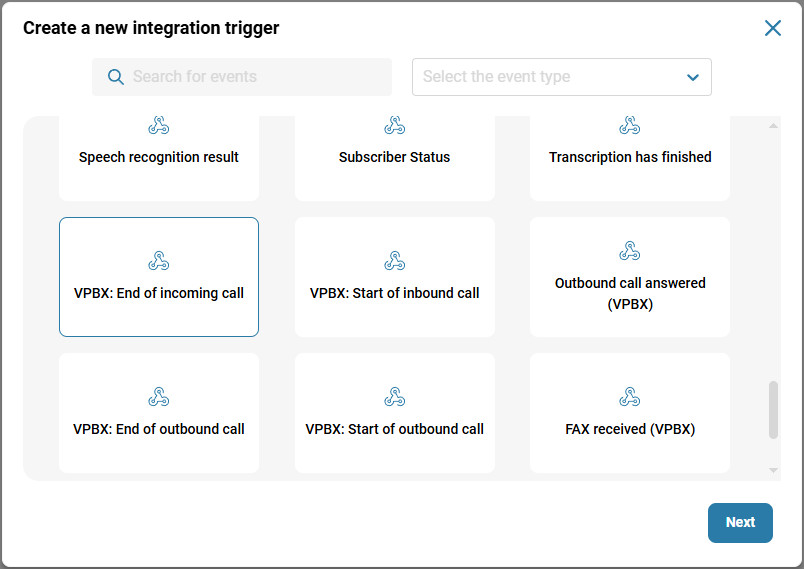
To create an integration trigger, go to the Slack Integration Triggers page and click the Create Trigger button.

Select a trigger.
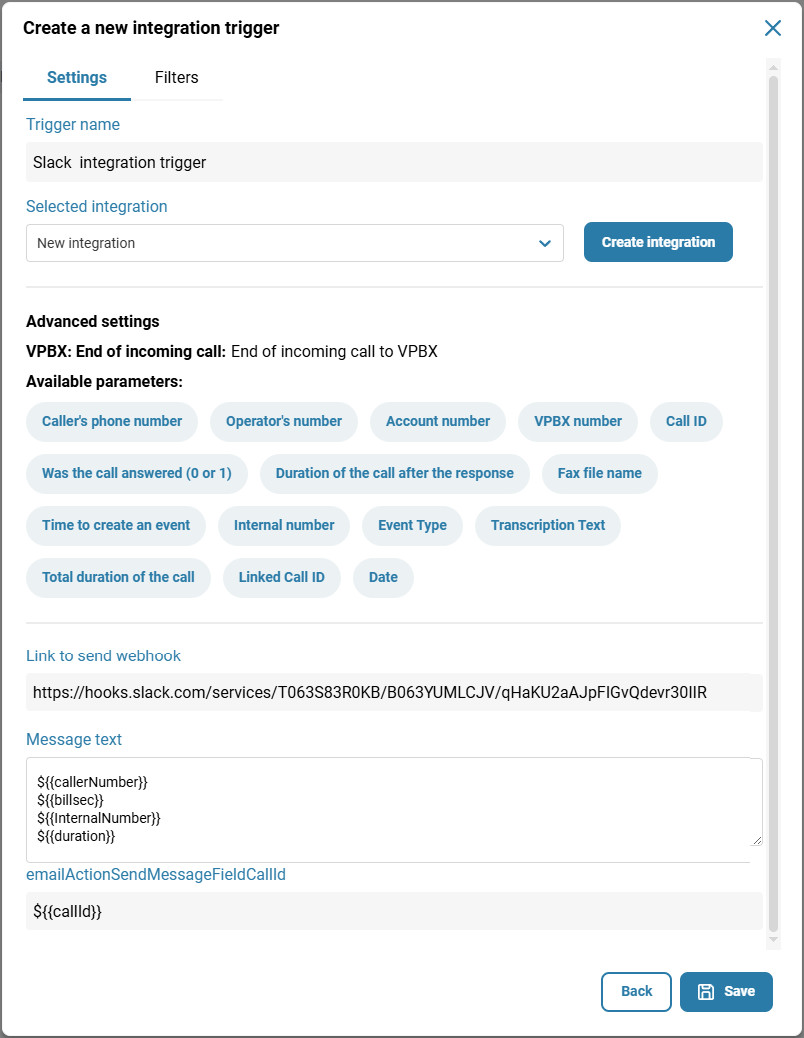
Fill out the integration trigger creation window with the necessary information:
Trigger Name (required);
Select Integration (required) — the integration you want to link this trigger to;
Link to Send webhook — accepts the link from step 6.
Message Text — accepts text and variables.
Click the "Save" button.
Integration setup is complete.
Also see:
Was this article helpful?
That’s Great!
Thank you for your feedback
Sorry! We couldn't be helpful
Thank you for your feedback
Feedback sent
We appreciate your effort and will try to fix the article