Mobile — an employee who has a mobile phone with a KOMPaaS SIM card, a short number, and the FMC option enabled. See also 'Call transfer to FMC'.
Subscribers dial short numbers to call each other. A mobile subscriber functions as an internal subscriber of the virtual PBX, and calls between such PBX subscribers are treated as internal calls.
This helps reduce the number of missed calls and increase customer loyalty, as customers will have the impression that they are calling the company's office.
To add the element to a call scenario:
Go to 'Telephony' → 'Call scenario' tab → click the 'Mobile' element icon in the sidebar on the right.

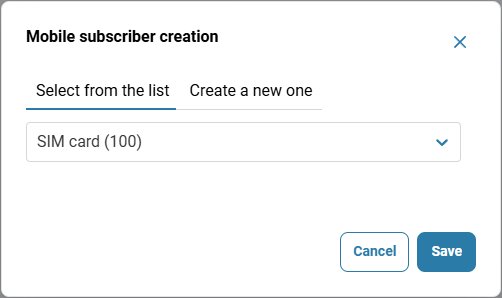
Select the mobile subscriber to whom the call should be routed.
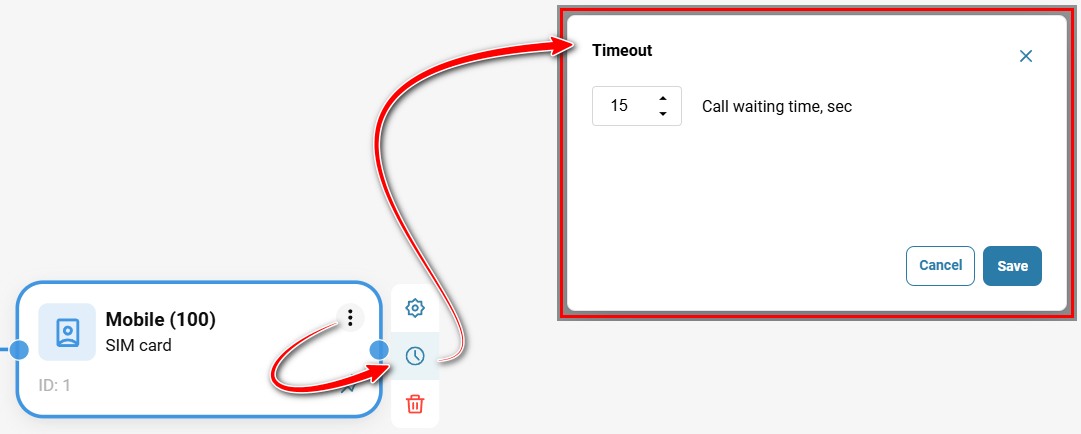
If the subscriber does not answer the call, set 'Call waiting time, sec' to specify how long the system should wait before routing the call to another destination. If 'Call waiting time, sec' is set to zero, the 'Mobile' element will be the final destination in the call route. For more information, see 'Subscriber types'.
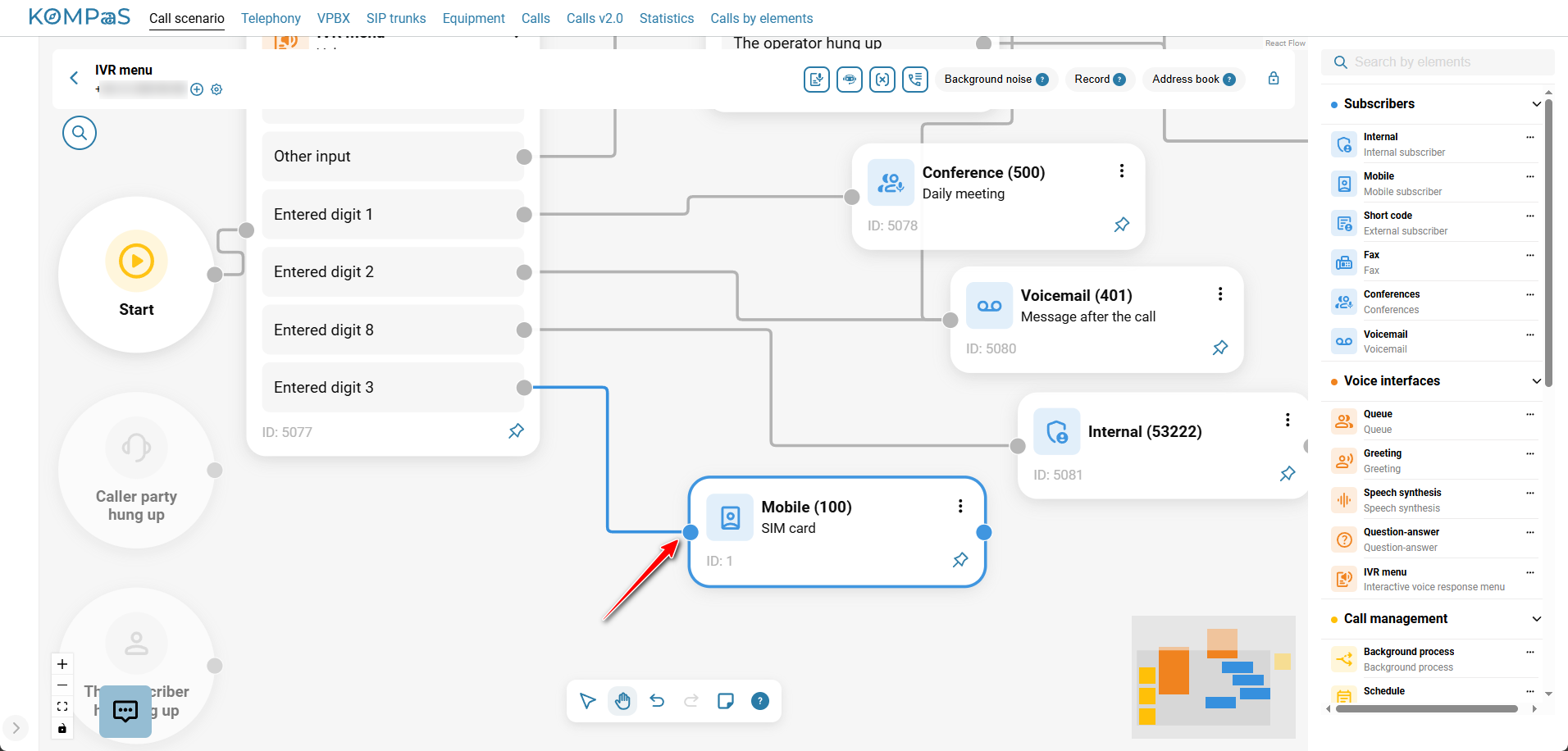
Connect the 'Mobile' element to other elements in the flowchart using arrows to define its position in the call scenario and specify the call routing direction.
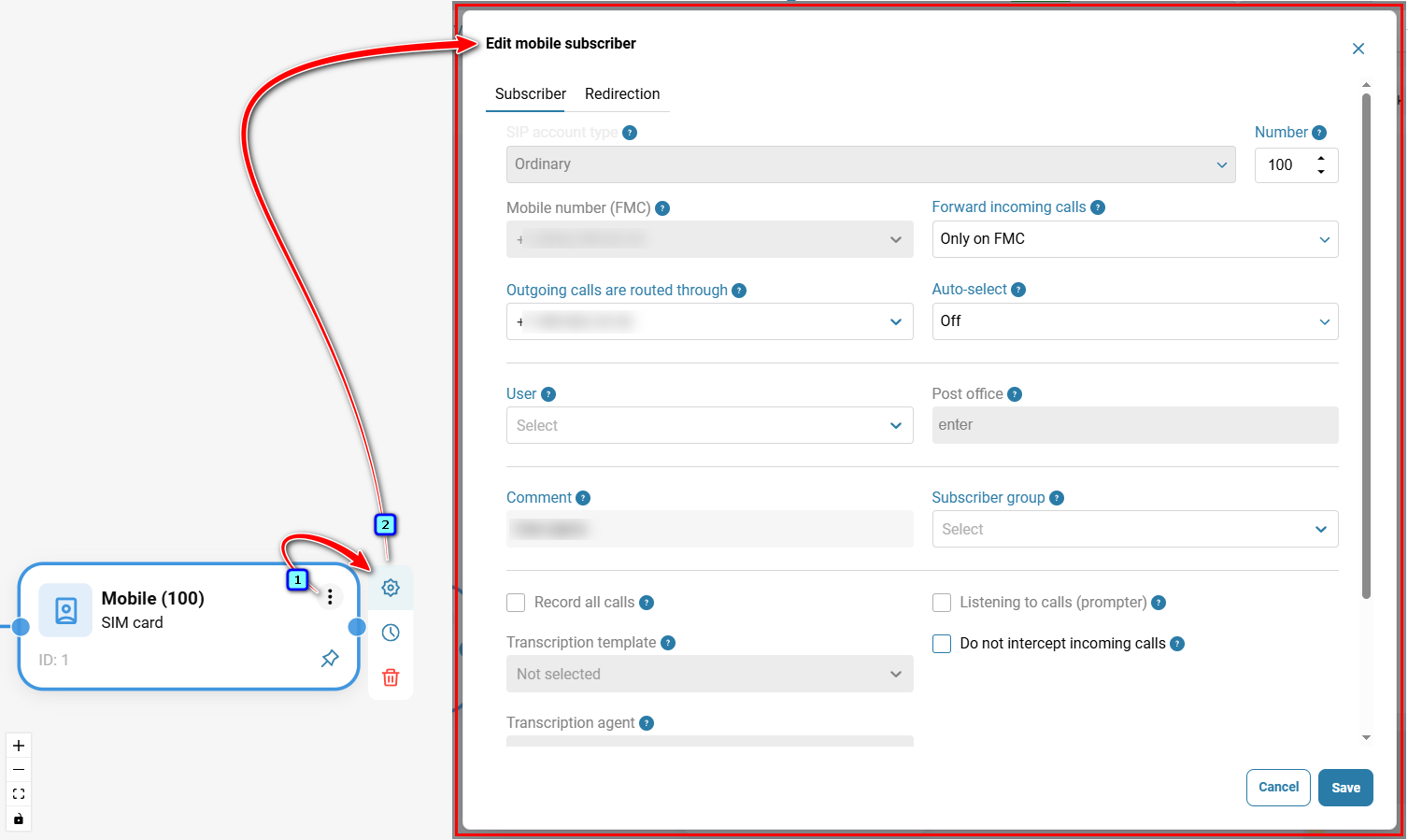
To edit the element, click the three-dot menu, then click the gear icon.
Was this article helpful?
That’s Great!
Thank you for your feedback
Sorry! We couldn't be helpful
Thank you for your feedback
Feedback sent
We appreciate your effort and will try to fix the article