Go to 'Telephony' → 'VPBX' tab → 'Call routing' menu on the left → 'Voicemail'.
To create a new voicemail box:
Click the 'Add' button.
Specify the following:
Number — the voicemail box number. Select it using the up and down arrows. You will need to enter this number on your telephone to listen to voicemail messages.
Title — a descriptive name for the voicemail box.
Pincode — the PIN code used to access the voicemail box. Setting a PIN code is optional, but if one is set, you will need to enter it on your telephone to listen to messages.
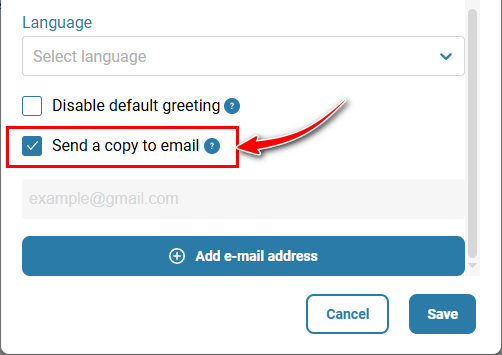
Send a copy to email — select this checkbox if you want to receive copies of voicemail messages by email as well.
Add e-mail address — a button for adding email addresses to which copies of voicemail messages will be forwarded in MP3 format.
This field is available when the 'Send a copy to email' checkbox is selected.
Click the 'Save' button.
Add the voicemail box to 'Call scenarios'. Calls will then be routed to voicemail according to the configured routing rules.
For detailed information about routing calls to voicemail, see the 'Voicemail' element section in the Knowledge Base.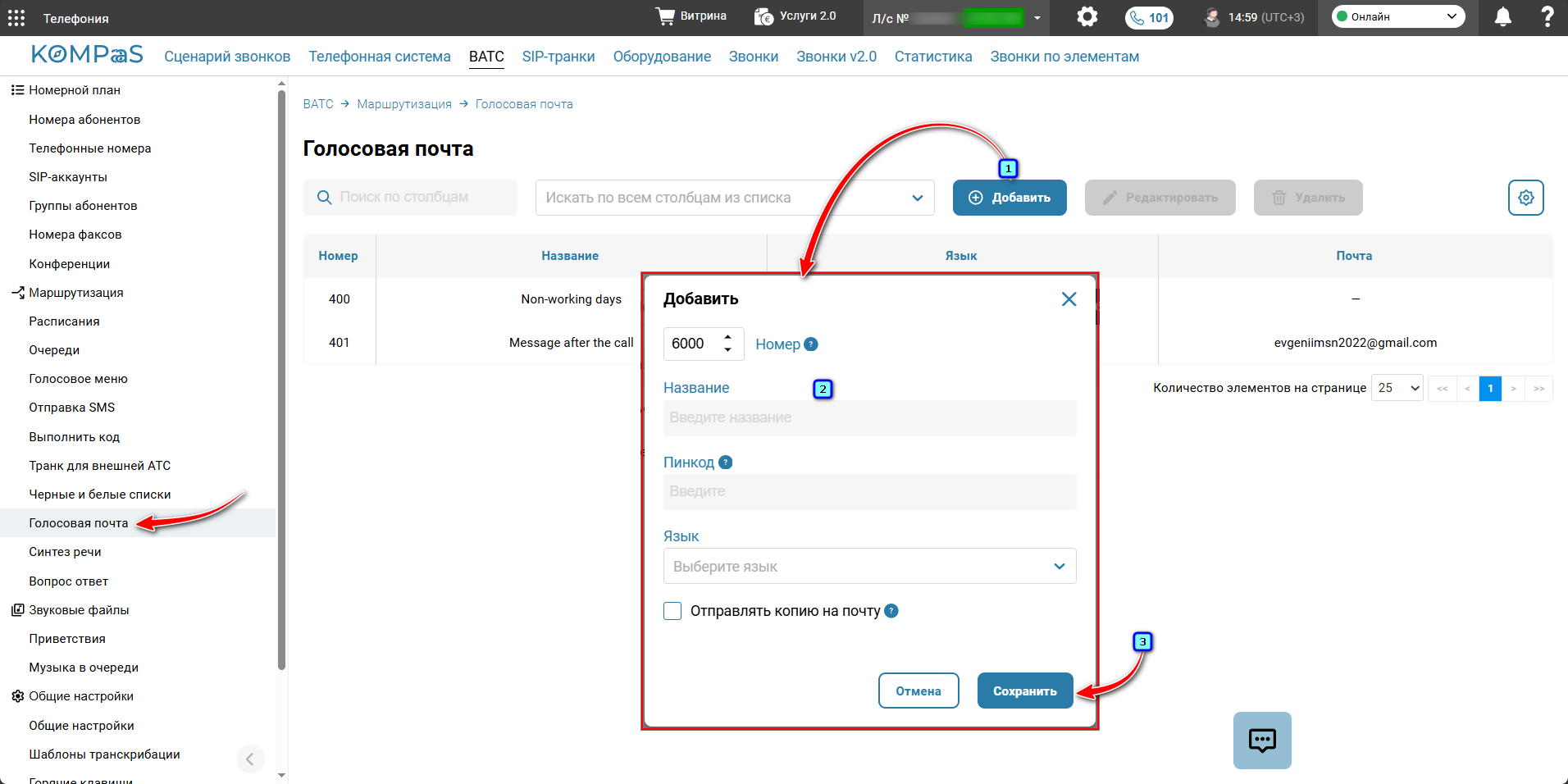
Also see:
Was this article helpful?
That’s Great!
Thank you for your feedback
Sorry! We couldn't be helpful
Thank you for your feedback
Feedback sent
We appreciate your effort and will try to fix the article