Login to your KOMPaaS Account:
Click Telephony service section in top menu.
Click to SIP settings section in submenu.

Get SIP account ID, SIP password and SIP server data from one of "Common SIP" type SIP account.
Use these here to generate QR code.
Open Zoiper application on your smartphone and tap QR code button as shown on screenshot below.
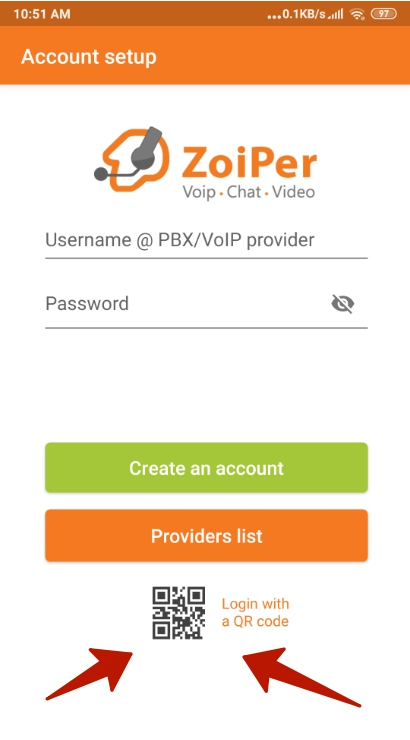
Use camera to read QR code from the page.
Was this article helpful?
That’s Great!
Thank you for your feedback
Sorry! We couldn't be helpful
Thank you for your feedback
Feedback sent
We appreciate your effort and will try to fix the article